If Microsoft SSO is set up, it is possible to synchronize individual Microsoft Rooms (such as meeting rooms, group rooms) with seats in Buuky. By synchronizing the seat with a Microsoft Room, the bookings are synchronized in both Buuky and Outlook so that the reservations can be made via both applications.
Note: If the Microsoft SSO has not yet been set up, this must be done first: Microsoft-SSO
Synchronization can be carried out under “Site configuration”:
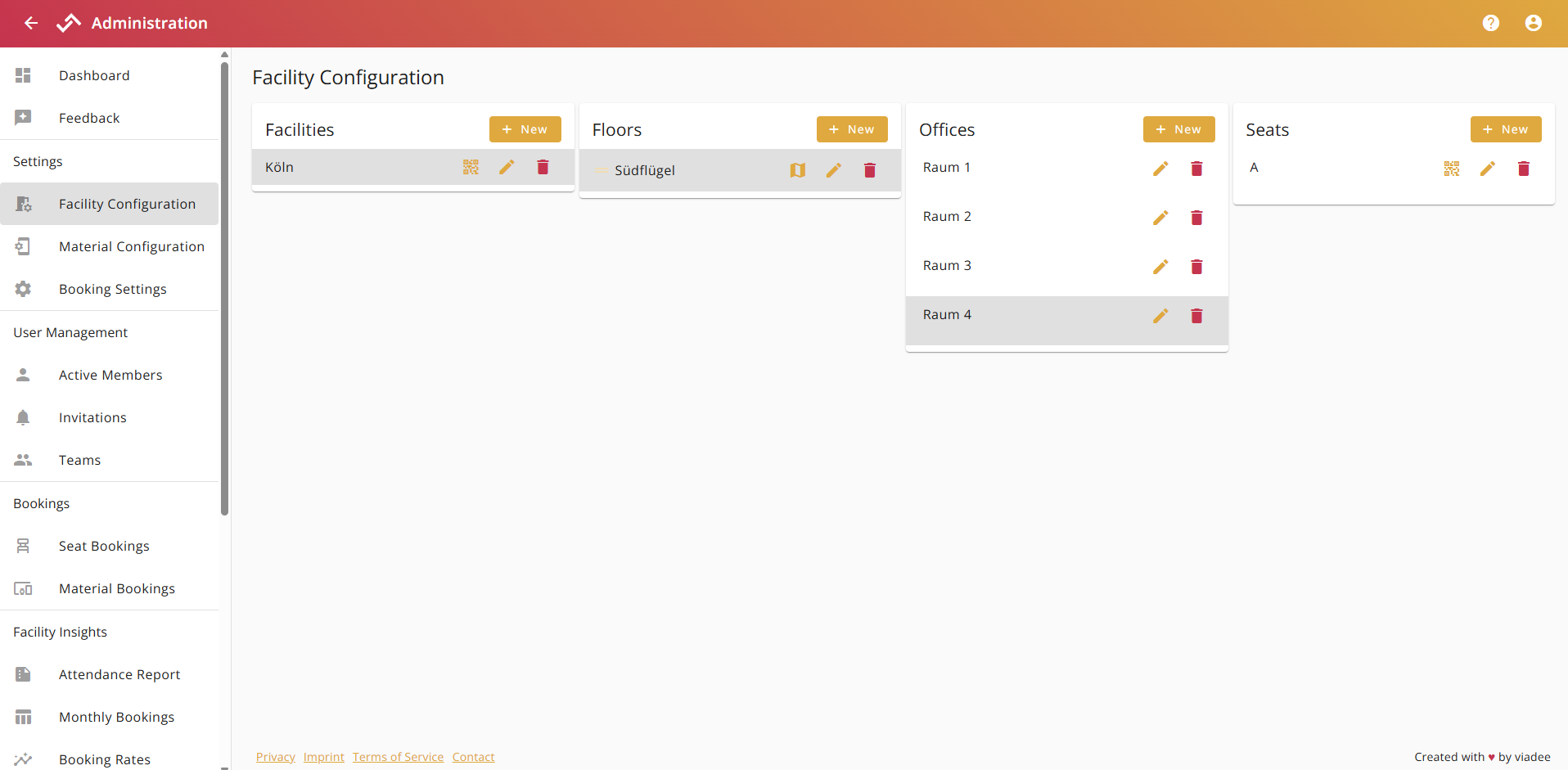
Proceed as follows:
1. Select the office to be synchronized with Outlook. We recommend naming the office according to the corresponding Microsoft Room name in Outlook.
2. Click on the edit icon of the desired seat. The following dialog opens:
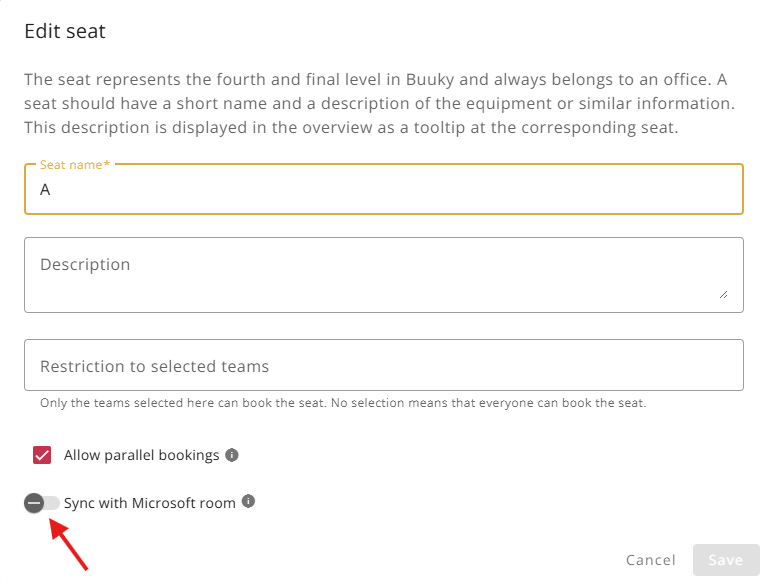
3. Activate synchronization with the Microsoft Room using the slider. A list of all rooms that are stored in your Microsoft organization as a resource of the type “Room” appears. If no rooms are displayed, they must first be created in the Microsoft Admin Center (see Microsoft documentation). Note: It takes about one day after the creation of a new room until it is displayed in Buuky and can be synchronized.
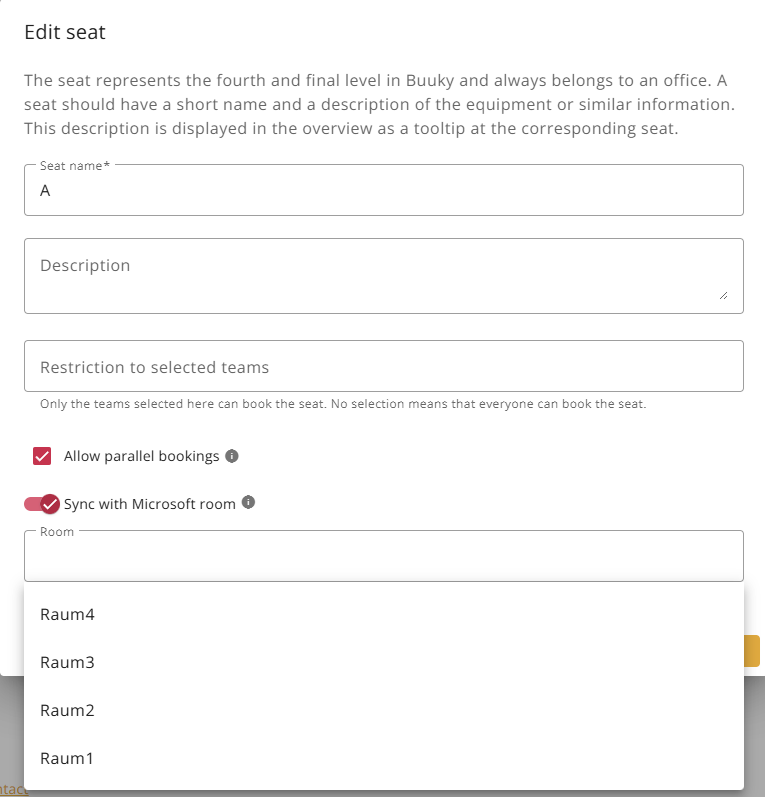
4. Select the desired room and click Save.
Important: Existing Buuky bookings for this seat will be deleted and all Outlook events for the selected room will be imported to Buuky at the same time. From now on, all bookings, changes and cancellations from Outlook or Buuky will be synchronized.
You can recognize synchronized seats by the Outlook icon in the booking field and on the overview map.
To stop the synchronization, open the “Edit seat” dialog again, deactivate the slider and confirm this by clicking on Save.
