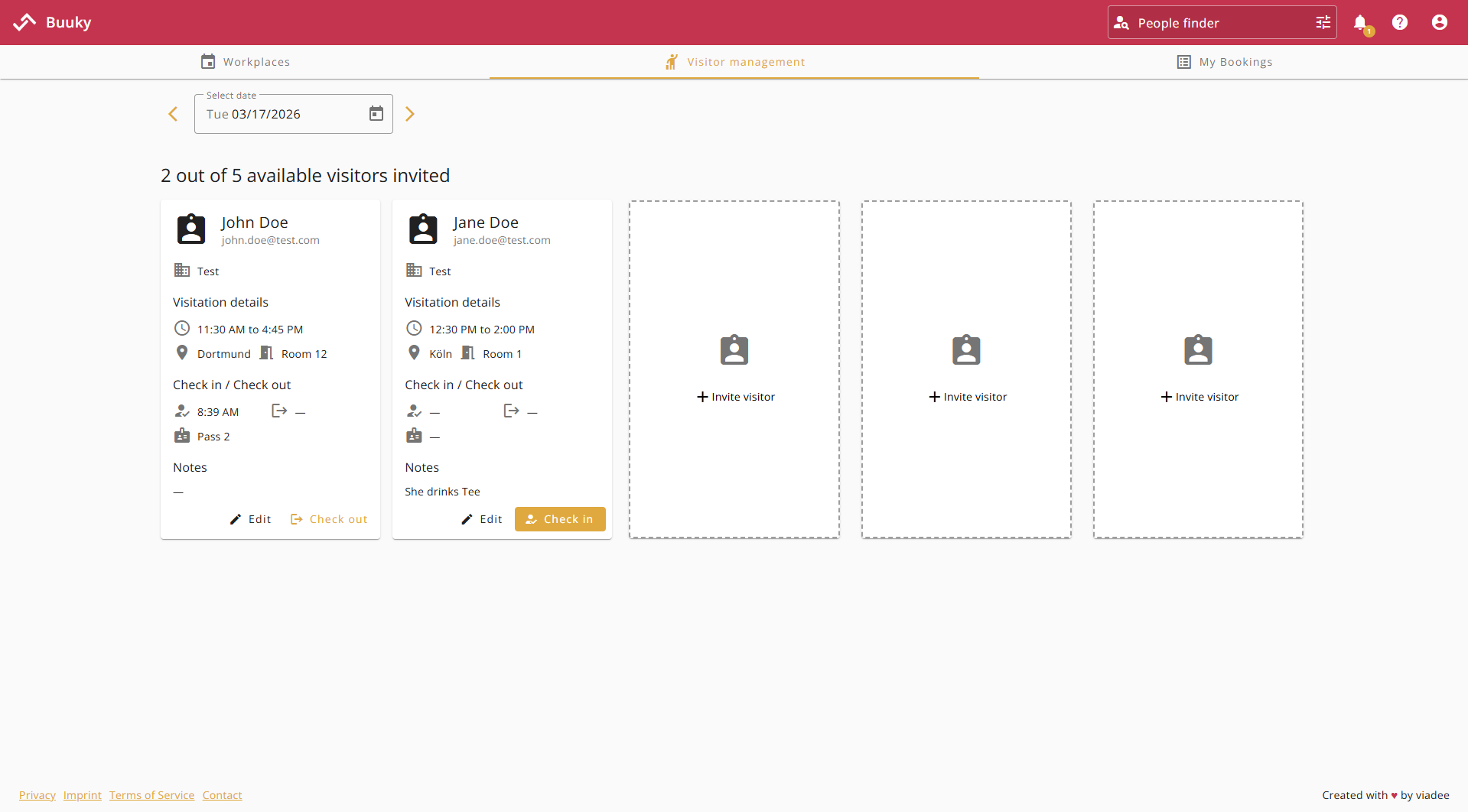
Buuky offers a dedicated view for easily inviting and managing visitors. Note that this view is only visible if visitor management is enabled in the settings. You can learn how to do this here.
Each user may invite 5 visitors per day via the free tiles in the visitor management.
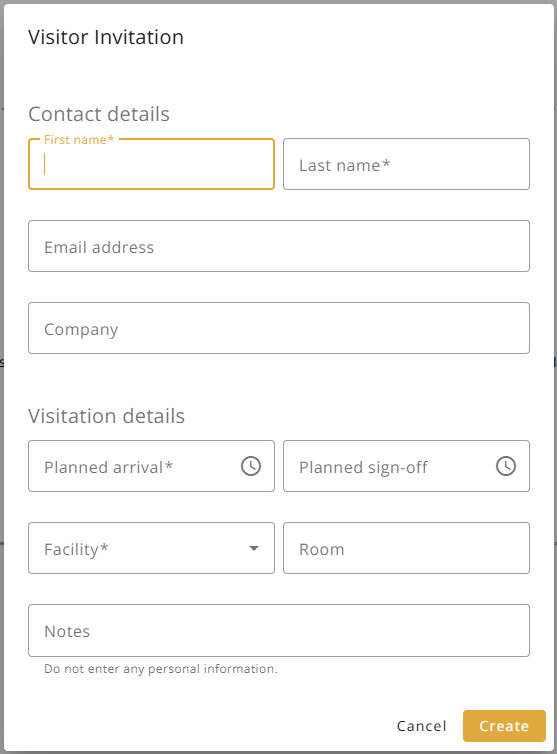
Fill out Invitation
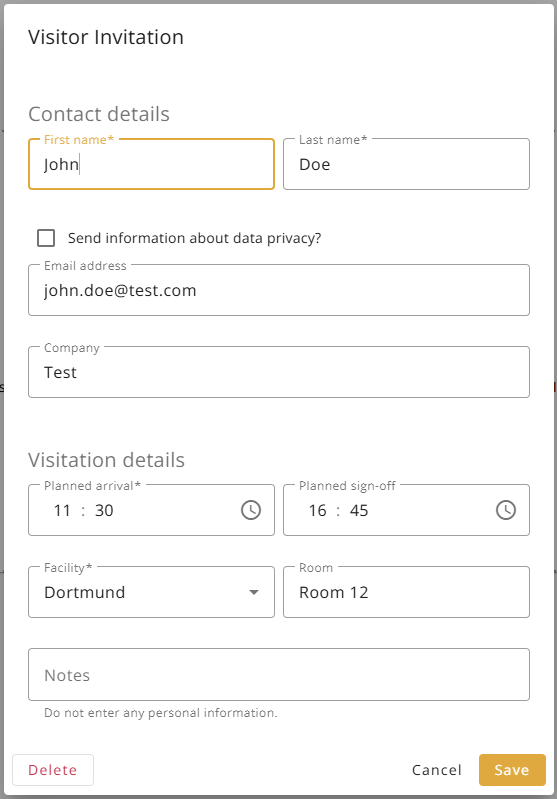
To invite new visitors, you must enter their first and last name, planned arrival and sign-off times, and the selected facility. Additional information such as email address, company, room, or notes can further clarify your visitors. You can then finalize your visitor invitation by clicking the "Create" button in the bottom right corner.
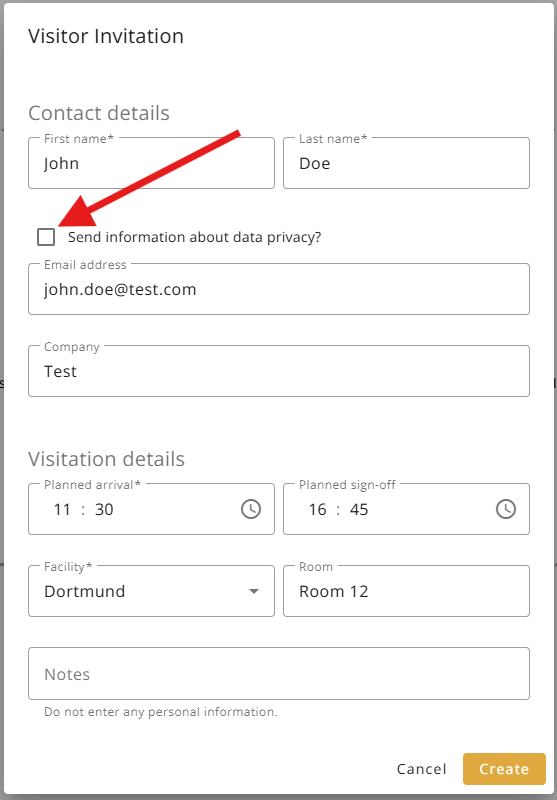
Send Privacy Policy
This field only appears if a template for an privacy policy email is configured in the settings (more details can be found here). If the checkbox is selected, an email will be automatically sent to the visitor using the configured template. Please note that this requires entering the visitor's email address.
Change Information
Clicking the "Edit" button opens the edit dialog. Here, all visitor fields can be changed. Note that the date of the visitor invitation cannot be changed. Additionally, all fields are only editable until the person has checked in. After that point, only the visitor's notes can be edited.
Delete Visitor
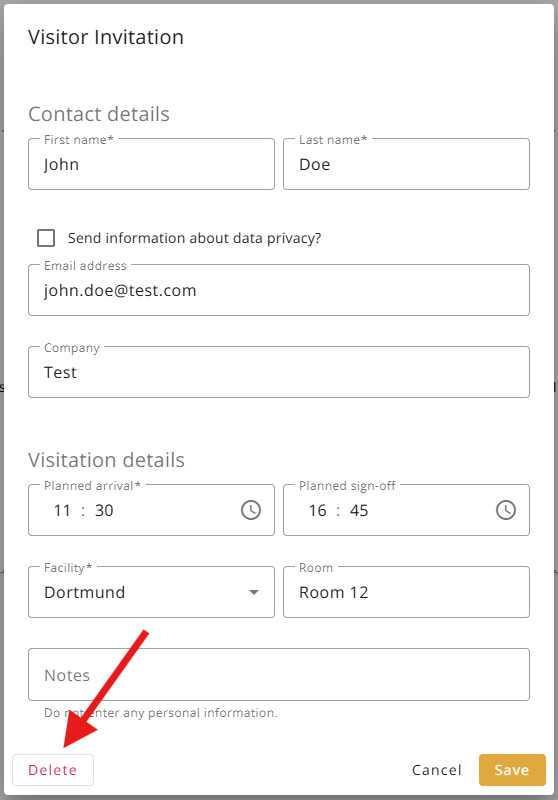
As long as visitors haven't checked in, they can be deleted using the "Delete" button in the edit dialog. After clicking the "Delete" button, you must also click "Confirm deletion" to confirm the action.
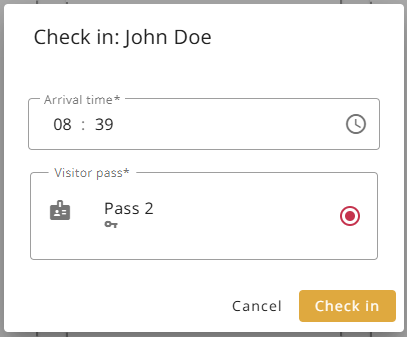
Pressing the "Check-In" button opens the check-in dialog, allowing visitors to be check in directly. The current arrival time is recorded, and an available visitor pass must be provided, which will then be issued to the person.
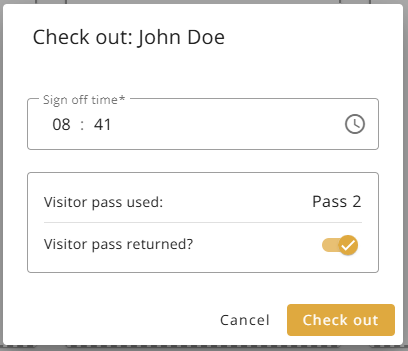
Pressing the "Check-Out" button opens the check-out dialog, allowing visitors to be check out. The current departure time is recorded. The visitor pass used can then be returned. A slider can also be used to indicate that the pass was not returned, which will block the pass from being used again.